Are you hunting for a working Virtual Desktop discount code or promo code for the Meta Quest store? This in-depth guide covers the best ways to save on this essential VR streaming app, along with everything you need to know about its features, setup requirements, and why it’s a must-have tool for PCVR enthusiasts in 2026.
What is Virtual Desktop?
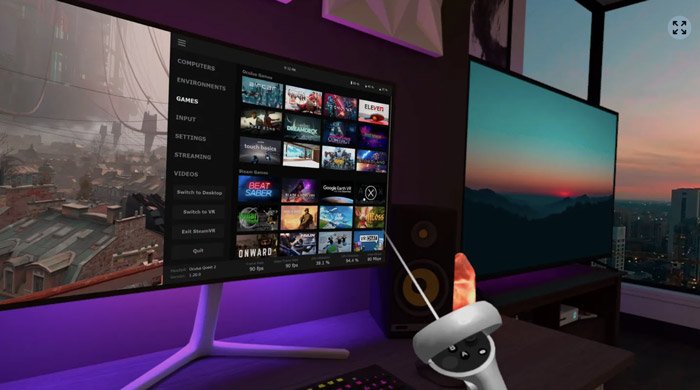
Virtual Desktop is a highly optimized, native application designed for low-latency, high-quality streaming from your PC to your Meta Quest headset. It lets you connect wirelessly to your computer to watch movies, browse the web, play games on a giant virtual screen, or stream PCVR games directly to your Quest.
Whether you’re a gamer looking to access your full SteamVR library or someone who wants a massive virtual workspace, Virtual Desktop transforms your Meta Quest into a powerful PC extension.
Key Features of Virtual Desktop
- Wireless PCVR Streaming: Play your favorite PCVR games on your Meta Quest with minimal latency and high visual fidelity.
- Giant Virtual Screen: Watch movies, browse the web, or work on a massive virtual display that feels like a personal cinema or multi-monitor setup.
- Videos Tab: Download or stream regular, 180-degree, or 360-degree videos straight from your computer.
- Multi-Monitor Support: Handles physical and virtual monitors seamlessly for productivity or multitasking.
- 3D Content Playback: Supports Side-by-Side and Over-Under 3D formats for immersive viewing.
- Input Device Compatibility: Works with Bluetooth mice, keyboards, and gamepads.
- Microphone Passthrough: Allows your Quest’s mic to be used during PC sessions.
- Remote Access: Stream from anywhere over the internet (with UPnP enabled on your router).
System Requirements
To get the most out of Virtual Desktop:
- Your computer must be wired to a 5 GHz router with a Gigabit Ethernet cable.
- Compatible with most Windows 10/11 PCs and laptops, or macOS Catalina and later.
- For PCVR game streaming, a VR-ready PC running Windows 10 or 11 is required.
Why Virtual Desktop Stands Out in 2026
In a world where Meta Quest headsets are more popular than ever, Virtual Desktop remains the gold standard for bridging the gap between standalone VR and full PC power. It’s perfect for users who want the freedom of wireless play without sacrificing performance. The app’s native optimization ensures buttery-smooth streaming, making it ideal for everything from intense PCVR sessions to relaxed media consumption.
If you’re already invested in a Meta Quest 3 or Quest 3S, this is the app that unlocks your entire PC gaming library on the go.
How to Buy Virtual Desktop with the Best Deal
Public Virtual Desktop discount codes appear infrequently, but affiliate links from trusted sites like ours often provide the most reliable savings or bonuses at checkout. For the latest deals, always check our Meta Quest Promo Codes & Discounts February 2026 – All Working Codes + VRCGUY.
Get Virtual Desktop on the Meta Quest Store here: purchase Virtual Desktop
Don’t forget to try the universal code VRCGUY at checkout for potential extra savings on the Meta Store.
Quick Setup Tips for Virtual Desktop
- Ensure your PC is connected via Gigabit Ethernet to a strong 5 GHz Wi-Fi router.
- Install the Virtual Desktop app on your Meta Quest from the store.
- Download the companion streamer app on your PC and pair your headset.
- For the best experience, tweak streaming settings based on your network speed (e.g., enable high bitrate for PCVR).
For hundreds more Meta Quest games and apps with working discount links, visit our complete A-Z discount codes directory.
Final Thoughts
Virtual Desktop is more than just an app—it’s the key to unlocking the full potential of your Meta Quest headset. Whether you’re diving into PCVR worlds or creating a virtual home office, its reliable performance and feature set make it indispensable. Grab it today and elevate your VR experience.